
Posting every day is hard. Planning once a week and letting the app post for you is not. CrossPost has two tools for that: the Calendar shows what goes out and when, and the Queue holds a posting schedule so you never have to pick a time by hand. This guide explains both and ends with a routine you can run in one sitting.
The Calendar: week and month views
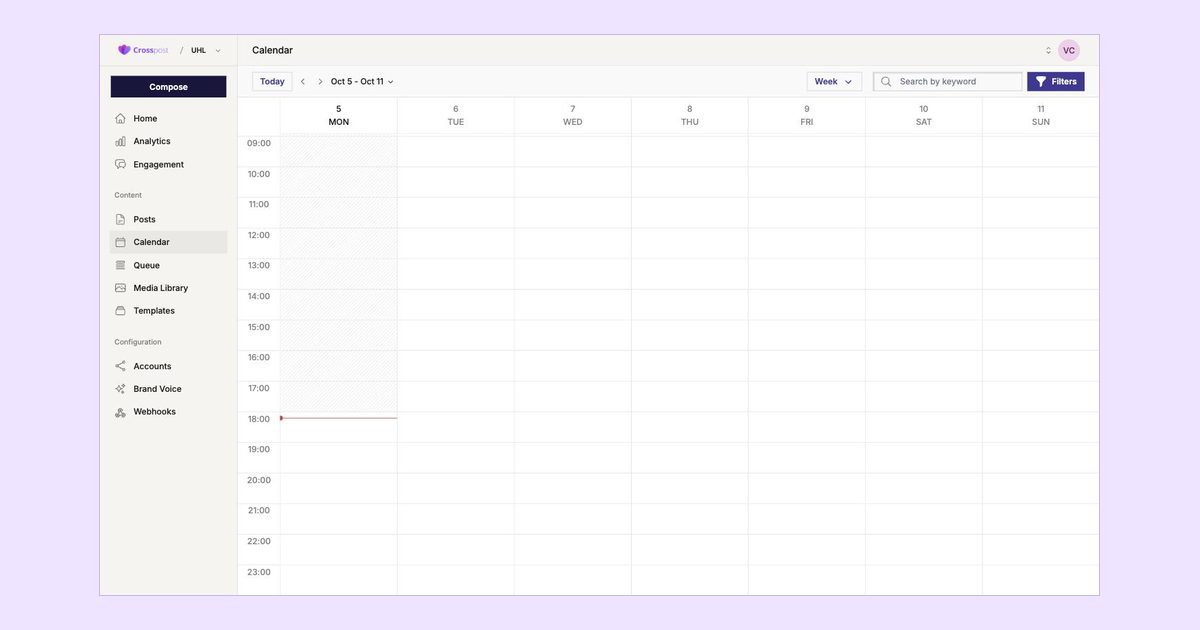
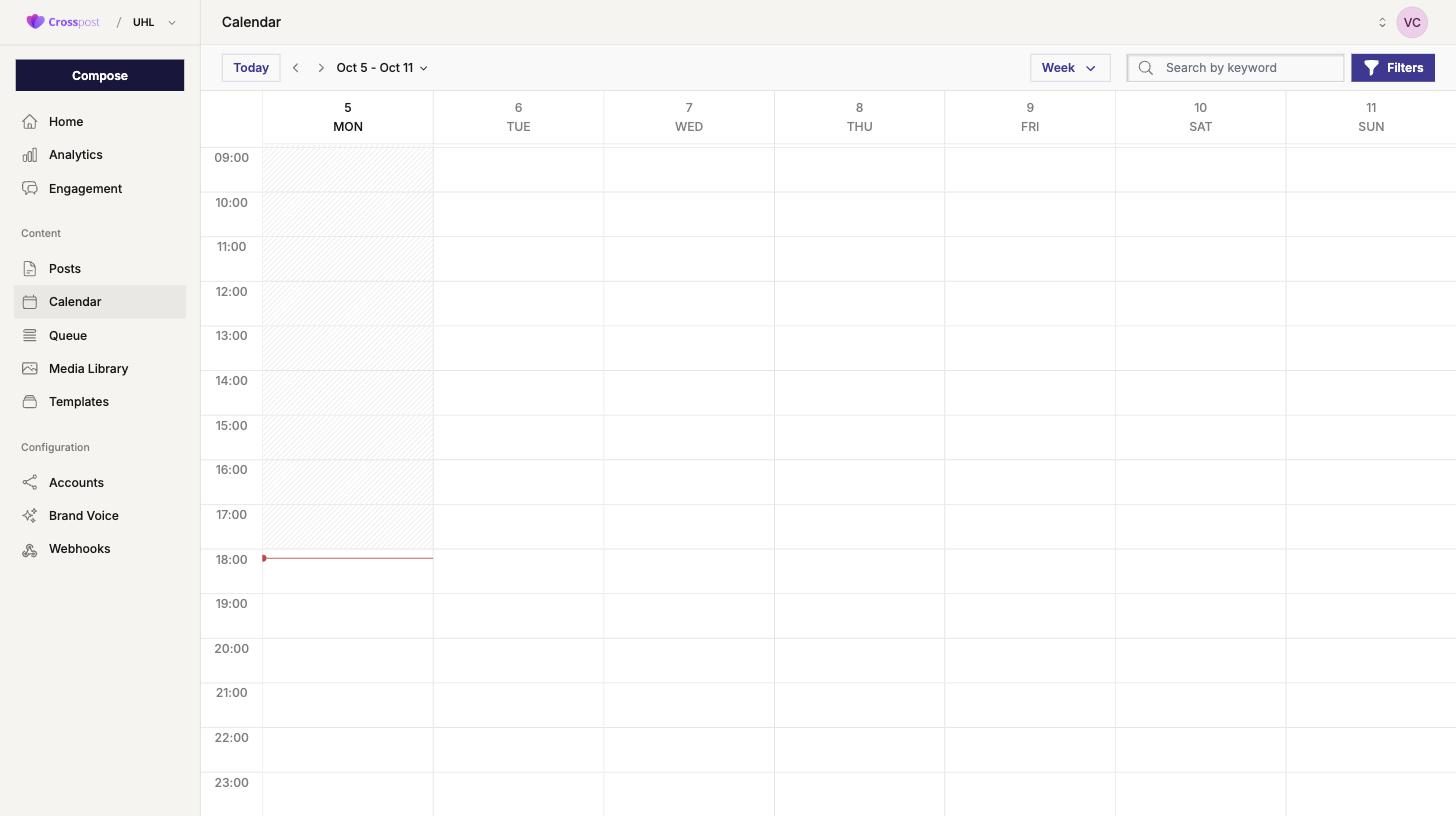
Open Calendar in the Content section. The Week view lays out the seven days as columns with the hours down the side, and a red line marks the current time. It is the view for detailed planning: you see exactly where each post sits and where the gaps are.
Switch the dropdown to Month for the bigger picture. That is where you notice one packed week followed by an empty one, or a campaign that stops too early. Use week view to place posts and month view to check the rhythm.
Filters and keyword search
With several accounts connected the calendar fills up quickly. The Filters button narrows it down, for example to the accounts you are planning for right now, so you can review one brand or network without the others in the way. The Search by keyword box finds posts by their text: if you remember writing about a product launch but not when it is scheduled, type the product name and the calendar shows you.
How queue time slots work
The Queue page holds your posting schedule: a set of time slots per day of the week. You might define 09:00 and 17:00 on Monday, Wednesday and Friday, and 11:00 on Saturday. Slots are defined per account group, so a client with a lunchtime audience can have a different schedule from your own brand.
When you press Add to Queue in Compose, the post takes the next free slot for the selected accounts. Add five posts and they fill the next five slots in order. You decide the rhythm once, then you only have to produce content. The queue also makes it obvious how many posts you need per week: three slots a day on five days is fifteen posts, and if that is more than you can write, reduce the slots rather than leaving them empty.
Queue or Schedule?
Use the queue for evergreen content: tips, product reminders, anything that works equally well on Tuesday or Thursday. Use Schedule for posts tied to a date, such as an event announcement; queued posts flow around them.
A simple weekly planning routine
Block an hour on the same day each week and work through these steps.
- Look back. Open the Calendar in month view and the Analytics summary. Which posts from last week got engagement? Note one thing to repeat and one thing to drop.
- Collect topics. Write down as many ideas as you have queue slots. Mix formats: a tip, a question, a photo, a short update.
- Write in Compose. Produce the posts one after another. Start from a Template where you have one, check the per-network preview, then Add to Queue.
- Place the fixed dates. Anything tied to a day gets scheduled explicitly so it lands where it must.
- Check the week view. Look for two posts to the same account within an hour, or a day with nothing at all. Open a post and move it if needed.
- Close the app. The posts go out on their own. Check the Engagement inbox once a day for replies.
Best time to post: a few hints
There is no universal best time; anyone who names one is guessing about your audience. Start from common sense, then measure.
- Post when your audience is awake and has a moment: before work, around lunch and in the early evening are the usual candidates for a local business audience.
- Professional networks such as LinkedIn tend to be quiet at the weekend, while consumer networks are not. Give each account group its own slots.
- Run two different slot times for a month, then compare follower growth and the top performing account in Analytics. Keep the better one and test another.
- Consistency beats precision. A reliable Tuesday 09:00 post builds more of a habit than a perfectly optimised time you only hit occasionally.
The free Connect & Share plan includes 30 scheduled posts per month. If you run more accounts or post more often, the Amplify Presence plan removes both limits.
Next step
Log in at smm.uhl.agency, open the Queue and set up three slots for the coming week. Then write three posts, add them to the queue and watch them appear in the calendar.